In addition to being an excellent file repository and syncing tool, Google’s online storage service can do much more for you if you follow these best practices. Google Drive provides extensive online file storage and synchronization. The good news is that you may start utilizing your 15GB of storage for free right away if you have a Google account.
Drive, however, is much more than that. Additionally, it serves as the main center for Google’s entire online office suite, which consists of the online word processor, spreadsheet, and presentation tools Docs, Sheets, and Slides. And the exact suite mix, along with a few extras, is known as Google Workspace if you have access through your job or a business paid account. Google Drive serves as the main location for your workplace files in both cases.
However, Google Drive may be deficient in that 15GB, which can quickly fill up due to other services sharing it, such as Gmail and Google Photos. You may upgrade by signing up for Google One, which adds extras like a VPN and increases your cloud storage to 100GB for $1.99 a month or $19.99 a year.
The Google Drive browser interface allows you to drag files around, however there are situations when you would prefer not to use the mouse to navigate between folders. Then, much like in the macOS Finder or Windows Explorer, you may use shortcut keys to cut (Ctrl+X) or copy (Ctrl+C) a stored file, move to the desired location, and paste it by pressing Ctrl+V. To use it, you’ll need a Chromium browser, such as Microsoft Edge or Google Chrome.
Obtain a Fast Link
Choose a file in Google Drive and use Ctrl+C to copy it if you wish to link straight to it. Next, navigate to your document, email, or other location. Press Ctrl+V to paste the document name together with a complete link, or Ctrl+Shift+V to paste just the URL.
Set up the drive on the desktop
You can begin a project on the PC and access it from your tablet, smartphone, or home laptop thanks to Google Drive’s cross-device syncing. Additionally, it is not limited to native Docs, Sheets, and Slides; it may be used with any type of document. To automatically backup files from your computer to Google Drive or even Google Photos, install Drive for Desktop on your computer. The Google Drive mobile apps for both Android and iOS then make it simple for you to access those files. (Just keep in mind that free accounts have a 15GB usage cap.)
Anything you discover should be saved to Google Drive.
Note-taking apps like Pocket, OneNote, and Evernote may act as online archives for all of your digital belongings. Use Google Drive in the same manner by using the Save to Google Drive Google Chrome extension, which makes it simple to save nearly everything you view online to a Drive folder. However, there are certain restrictions. You can only save a view of a page as a PNG file, the full HTML source code, or as a Google Doc; you can’t truly save just the nice text sections of a page. You can save an image by doing a right-click. Use the services listed above if you want to save significant information.
If you wish to use a Google Drive file on your tablet or smartphone but don’t have internet connection, make sure the file is offline in advance. Click each file name’s three-dot menu, then select “Make available offline.” Any modifications you’ve made will sync with Google Drive once more when you log on.Go back to the menu and choose Remove offline access to reverse the action.
Use Drive to Get Over Gmail’s Attachment Limit
You’re in luck if you use Google Drive and Gmail since you won’t ever need to attach a document. Send a link only. This means that you can send up to 10 gigabytes of files instead of the 25 MB attachment limit.
The file or files must first be uploaded to Google Drive. Click the Google Drive logo at the bottom of the Compose email screen to insert the link into a Gmail message; this will open the Insert files using Google Drive dialog box. Drag and drop the files using the Upload tab if they are on your hard disk. Google will start uploading any file larger than 25 MB to Google Drive and include a link in the message if you attempt to attach it without a link.
Additional File Types in the Bookmark Bar
To easily generate a new document, spreadsheet, presentation, or drawing to add to Drive, manually add the following links to the bookmark bar of your browser.
To change, go to the Chrome browser and then go to the chrome://bookmarks in.
The option to upload an image is one special feature of the Google Drive mobile app that isn’t available in the individual Docs and Sheets applications. How come you would do that? Google scans the image’s words to produce text that can be searched. A recipe, menu, business hours, or anything else you’d need to locate later but don’t want to type again can all be photographed with it. To upload or use a camera, click the large + sign.
Note: The text that only functions on PC or Android devices cannot be edited by the iOS app.
To work with documents, convert all drive uploads.
Go to Google Drive (not Docs) on the desktop, then click the gear icon up top, and choose Settings if you want everything you upload on the desktop—including PDFs—to be converted to text that you can edit as a Google Doc. Check the box next to Convert Uploads in the pop-up box. Uploading files could take a bit longer, but it’s worthwhile. The image will be added into a Google Doc with editable text beneath it.
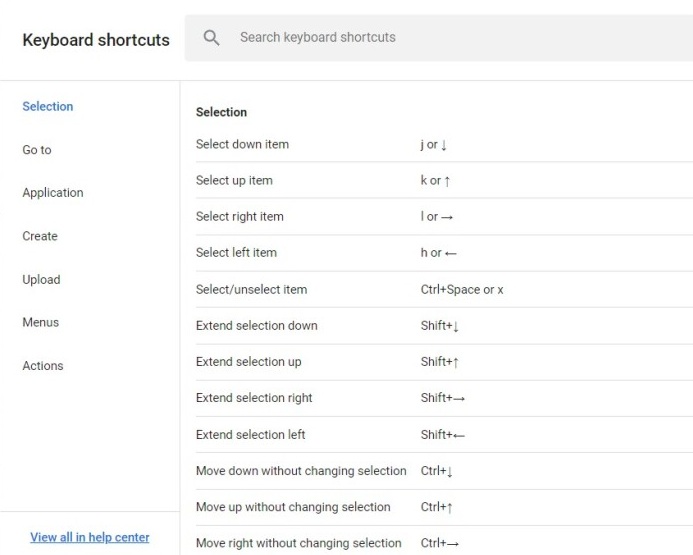
You’ll be a Google Drive king if you embrace keyboard shortcuts. But what are they, and how can you locate them? Enter Ctrl+/, and the list of shortcuts will display all of the keyboard options accessible, regardless of the Drive app you’re using, including the main Google Drive page.
Your Organizational Files Should Be Color Coded
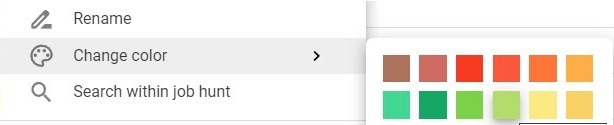
Organizing folders is helpful, but sometimes you simply need your eye to be directed to the most often used files by, perhaps, a color selection. Google Drive provides a plethora of options. To access the menu, right-click on any folder and choose Change Color.
Stop the Spam on the Drive
Because Gmail and Google Drive are closely related, spam is not just an issue with email. A spammer could simply share a file straight from Google Docs, Slides, or Sheets to grant you access, and it would appear in your Google Drive instantly, or they might email you with a link to the Google Drive file to click on.
Look for any documents or even entire folders that you know don’t belong in Drive’s Shared With Me view. Choose Block with a right-click. It will be linked to an email address, which is the person you are actually blocking.
Go to your Blocklist in the People and Sharing area of your Google account to unblock someone you accidentally blocked.