Has this really happened to you? As you are ready to export your finished video after adding the final touches, you discover that it will have a watermark. In order to encourage potential customers to acquire their software, several free video editors incorporate watermarks so that viewers can identify the program used. However, watermarks may take out of your video’s professionalism and quality. The top Free video editing software without watermark programs are compiled in this list. Continue reading to see our top options.
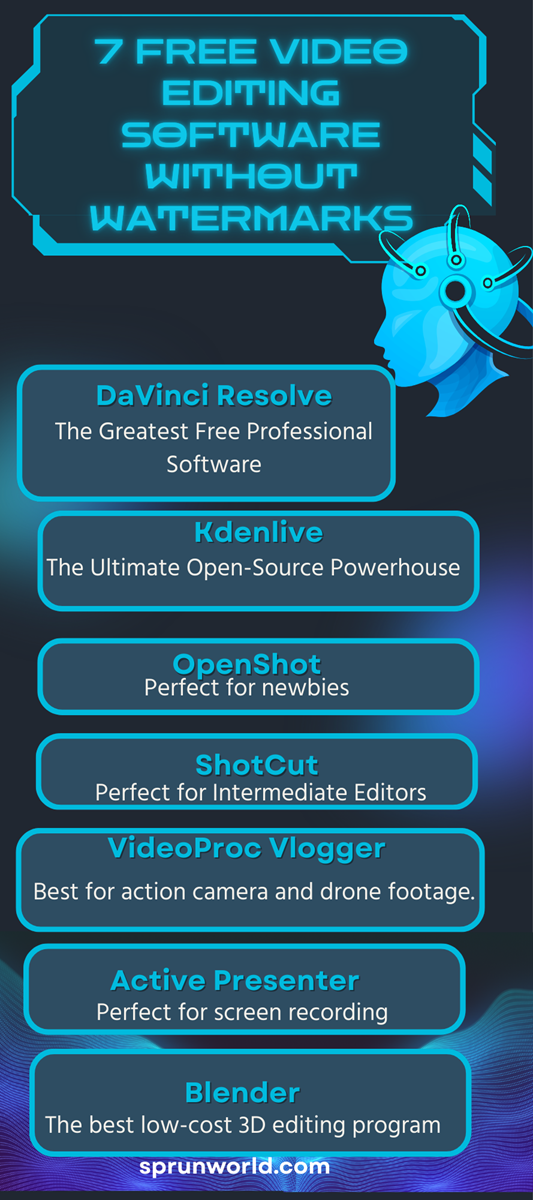
Free Video Editing Software Without Watermarks
DaVinci Resolve – The Greatest Free Professional Software
When it comes to an expert free software for editing, DaVinci Resolve is the business’s gold standard. Hollywood artists and even Netflix movies use this comprehensive production suite, which is more than just a free tool. If you’re passionate about filmmaking or content development, DaVinci Resolve is the perfect choice. Once you get the hang of it, you can make free, broadcast-caliber movies and videos.
SEE ALSO: The most effective mobile security software for iOS and Android
How to Set Up DaVinci Resolve
Visit the business’s site: DaVinci Resolve Installation Page. Now go downward to select your OS (MacOS, Windows, or Linux). Pick DaVinci Resolve, the Free one. Don’t select Studio because it costs $295 version.
Enter your country, email address, and name in the initial registration form.
Click “Register & Download.”
Once the installer has been downloaded, launch it and continue until the installation is finished.
Tip: A powerful machine with a specialized GPU is necessary for this professional tool. Ensure that you fit the system’s needs before installation.
Important features:
Four integrated workspaces:
Edit – Timelines and cutting tools
Fusion – Visual effects and blending
Fairlight – Advanced audio editing
Color: The best color grading package
Allows 4K, HDR, and RAW video
Industry-standard color grading
Cross-platform and watermark-free (even in the free version)
Kdenlive: The Ultimate Open-Source Powerhouse
Editors all around the world adore Kdenlive, an open-source project. It is completely customisable, community-driven, and of professional quality. For YouTubers and movie makers seeking a serious, proficient, and open-source workflow, Kdenlive is the ideal long-term partner.
How to set up Kdenlive
Go to kdenlive.org., Hit on the Download button at the top.
Select the operating system you use (Windows / macOS / Linux).
Choose the most recent version (such as v25.08.1).
Download and set up the downloaded file by following your system’s installer directions.
Tip: You may customize the UI to seem like other professional programs (like Premiere Pro or Resolve), which makes it easier for you to switch tools later.
Important Features
Limitless songs on the timeline
Modular interface: Drag and drop frames to the desired location.
Professional color correcting tools
Contemporary titles, effects, and transitions
Compatibility between platforms
OpenShot: Perfect for newbies
If you’re just beginning your editing experience, OpenShot is a terrific place to begin. It’s ideal for newbies because it’s neither too easy nor too difficult. For novice creators seeking a straightforward, watermark-free editor that offers sophisticated control when required, OpenShot is ideal.
How to Set Up OpenShot
Go to openshot.org, the official website.
The site will instantly recognize your operating system.
The most recent version (such as v3.3.0) will show up when you click Download.
The download starts on its own.
Once installed, activate the program – it supports several languages, including Vietnamese.
Tip: If you intend to switch to other skilled editors in the future, we advise using English mode even if OpenShot supports other languages. The terms and tools will keep consistent across platforms.
Important Features
Unlimited layers of audio and video
3D transition effects
User-friendly and tidy interface
Cross-platform: macOS, Windows, Chrome OS and Linux
Shotcut: Perfect for Intermediate Editors
Shotcut has existed around for almost two decades but remains underappreciated. It has outstanding performance, an easy-to-use layout, and professional tools. For designers who are prepared to go beyond the fundamentals, Shotcut is ideal. It’s dependable, strong, and its real-time previews performance is good for 1080p and 4K projects.
SEE ALSO: Essential Things You Must Consider When Designing A Website
How to Set Up Shotcut
Visit shotcut.org
On the webpage, scroll down to locate the most recent version (e.g., 25.08.16).
Shotcut fails to auto-detect your OS – you need to select manually: Windows, Linux, and macOS
Next, choose between the Intel, AMD, or ARM CPU architectures.
Hold down Ctrl, Shift, and Esc to get to the Task Manager.
Navigate to performance -> CPU.
You’ll notice the name of your CPU (e.g., AMD Ryzen, Intel Core).
Click Download after choosing the appropriate version.
As Shotcut is free, you can be led to a paid page – that’s typical. Watch the brief ad and continue.
(Optional) Add an email address to get version update alerts.
Important Features
Quick drag-and-drop timeline editing
Lots of effects and filters.
Motion tracking and chroma key (green screen)
Expert waveform control and audio mixer
Operates on Linux, macOS, and Windows
VideoProc Vlogger – Best for action camera and drone footage.
Vlogger VideoProc Lightweight for use on practically any desktop or laptop
includes sophisticated motion tools that are often found in software that is purchased.
Easy download and setup, with lots of help for novices. however it has downsides too, such Videos take a longer time to render lacking template and other design assets.
How to Set Up Vlogger with VideoProc
Get the installer here. For Windows or Mac, select “Free Download.” The setup file will begin to download on its own.
Open the file you downloaded.
Windows: Search for a file named videoproc-vlogger-setup.exe
Mac: Search for VideoProcVlogger.dmg
Launch the install. Click the file twice. Click “Yes” if Windows requests authorization. On Mac, drag the program icon to Applications.
Observe the directions displayed on the screen. Select install directory (you can retain default). Click Install. Await its completion.
Start the program. Open VideoProc Vlogger from your computer’s Desktop or Applications folder. It will walk you through the initial configuration (such as GPU acceleration).
Key Features:
Motion features like the Ken Burns movie effect, tilting, roll, pan, zoom, etc.
More than sixty pre-programmed transitions
20+ blending methods for unique composites.
ActivePresenter – Perfect for screen recording
For making lessons and presentations, ActivePresenter is very adaptable. It captures screen, camera, microphone, and computer audio all at once, which makes it ideal for people seeking a free editor for videos with no watermark. It offers amazing annotation capabilities.
Excellent formats for output and export possibilities. There are drawbacks. uses a lot of energy and computer power.
The free edition only provides extremely basic tools. You can export presentation in a variety of formats, including major video files (MP4, WMV, WebM, AVI, and MKV), eLearning specs (SCORM and xAPI), HTML5, as well as to Microsoft Office programs (Word, Word, and PowerPoint).
SEE ALSO: How To Select An Billing or Invoice Software For Your Needs
How to Setup ActivePresenter
Go to atomisystems.com/activepresenter. Click “Download” (choose Mac or Windows).
Launch the installer file that you downloaded. Hit Next → Install (with default settings). Open ActivePresenter post installation.
Key Features:
Freeze moments and slow- or fast-motion effects
Lots of transition and animated effects
Tools for audio editing, such as a normalizer, fades, and background noise reduction.
Blender: The best low-cost 3D editing program
Blender: This free video editor sans watermarks features outstanding modeling, rendering, and sculpting features with a large range of simulations, like smoke, fire, fluids, hair, and particles. pros like Modeling, sculpture, rigging, animation, sketching, and other tools. Many resources, including support forums, FAQs, and tutorials. Very versatile UI. flaws like Not an ideal suggestion if you don’t require 3D animation tools.
How to set up Blender
Go to blender.org, Hit Download Blender (it automatically chooses your system).
Launch the installer file that you downloaded. Next, select Install (keep defaults). Open Blender from your computer’s desktop or Start Menu.
Key Features:
Audio mixing includes synchronization, scrubbing, and waveforms visualization
Rigging features including multiple skinning and mirror tools
Sculpting techniques with integrated brushes like Clay Strips, Crease, Pinch, etc.
Conclusion
Free video editing software without watermark helps creators edit clean, professional videos for no cost, discover powerful tools, enhance their abilities, and make high-quality content without any constraints or hidden fees.